FreeUp Space help & guides

Clear guidance. At your pace.

Get to know each part of FreeUp Space, or start with the essentials for a careful iPhone cleanup.

The essentials

Three calm walkthroughs before you clean.

Read the steps below, then explore the app guides and playable video-compression example.

Keep a separate copy first

Back up photos and videos you want to keep

Choose an independent backup or export for important memories. iCloud Photos syncs changes — deleting on your phone can delete the item from iCloud and other synced devices too.

Read Apple’s photo-storage guidance
Use iPhone Settings

Offload an app you rarely use

Open Settings → General → iPhone Storage and select an app. Offload App removes the app while keeping its documents and data. Deleting the app is a different action.

Read Apple’s storage guidance

Leave time to be sure

Check Recently Deleted

Deleted photos and videos normally stay here for 30 days. You can recover them during that time. Empty it only when you are sure — permanent deletion cannot be undone there.

Read Apple’s deletion guidance

FreeUp Space guides

A little guidance for every kind of clutter.

Choose a category to see its explanation from the app, along with a few plain-English pointers.

Duplicate photosKeep one good copy.
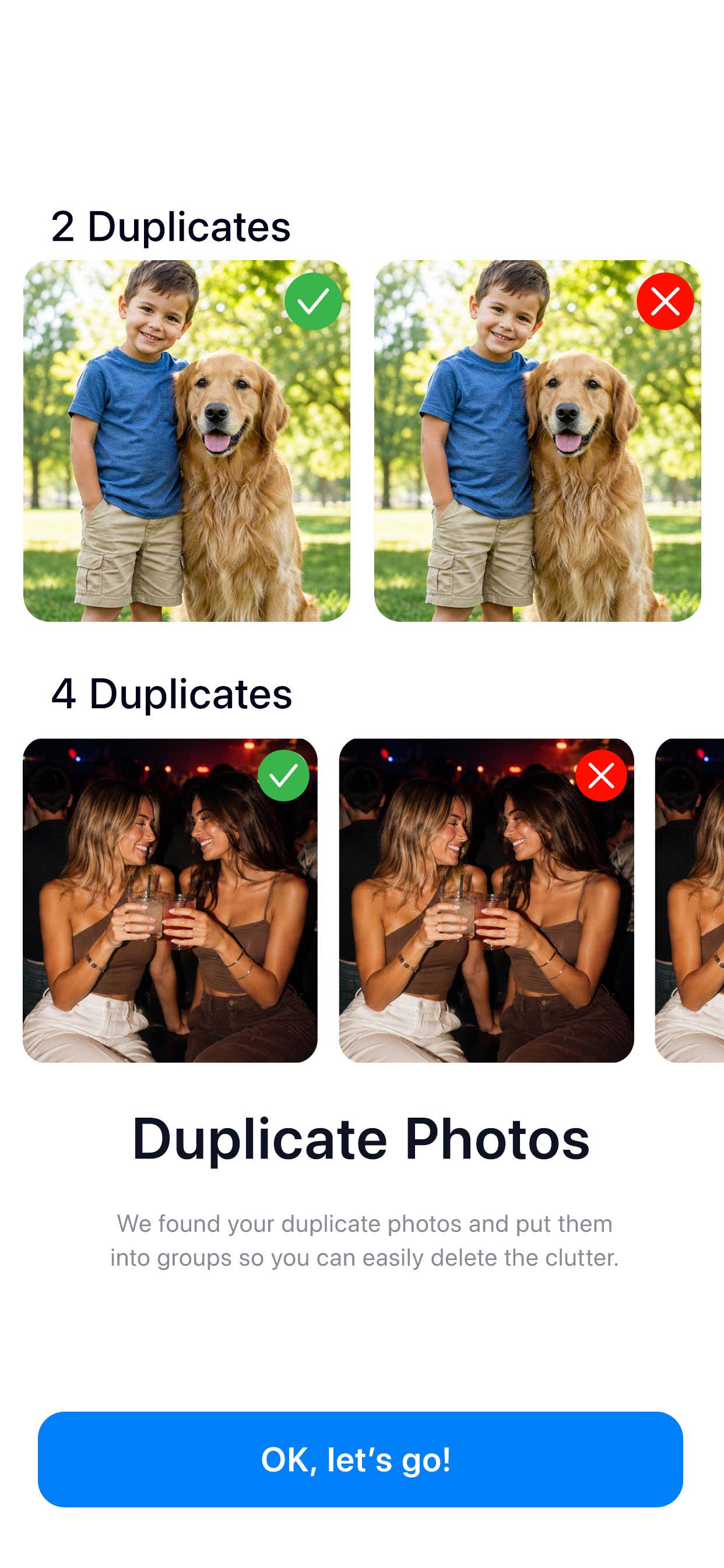
The supplied duplicate-photo explainer shows identical photos grouped with keep and delete choices.

Keep one good copy.

FreeUp Space groups duplicate photos so you can compare them together. Review the selection and keep the copy you want before confirming a cleanup.

Review your choices before confirming. Back up anything you cannot replace.

Ask FreeUp Space support
Similar photosChoose the moment you love.
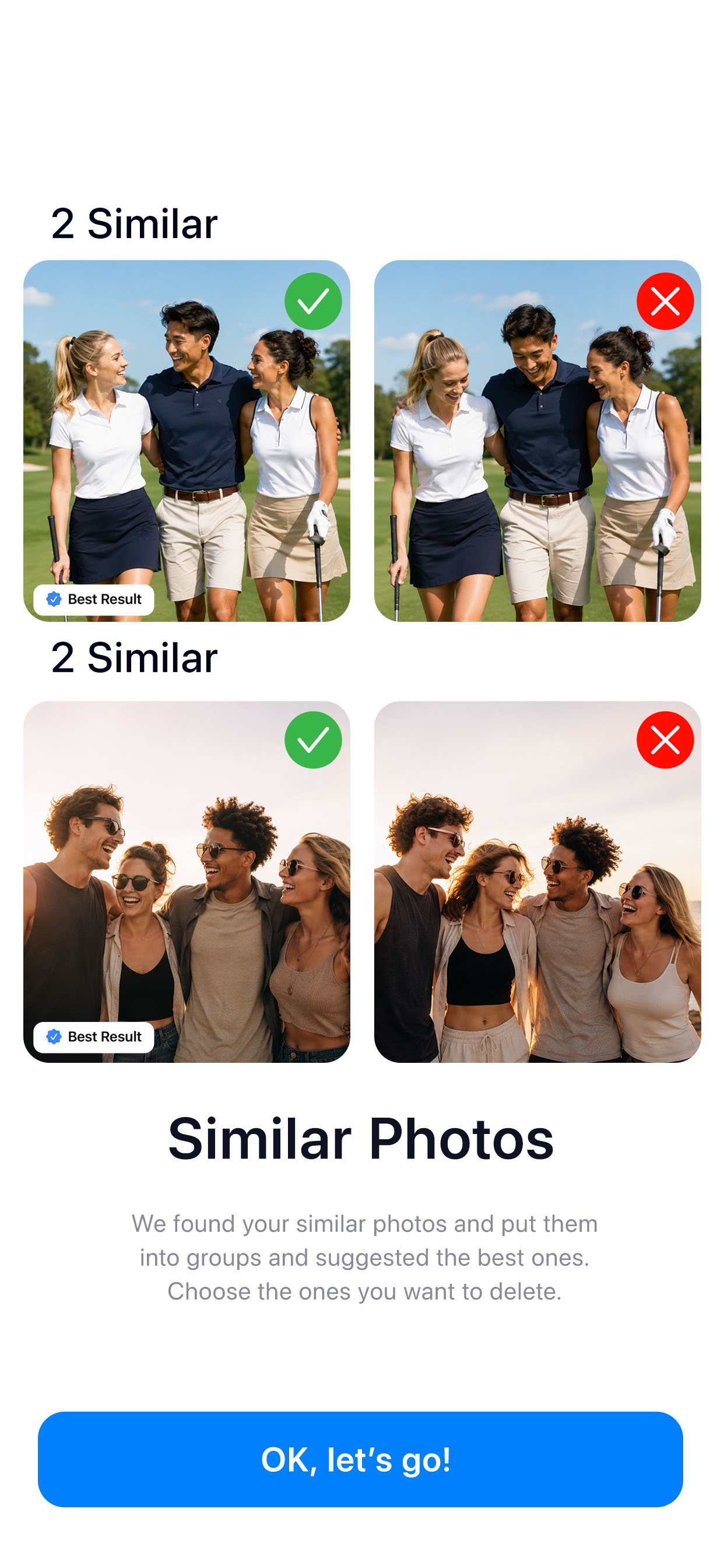
The supplied similar-photo explainer compares different expressions and suggests a best result.

Choose the moment you love.

Similar photos are different takes of the same moment. The app suggests the best ones, but the final choice is yours. Keep more than one if they matter to you.

Review your choices before confirming. Back up anything you cannot replace.

Ask FreeUp Space support
ScreenshotsClear the things you saved for later.
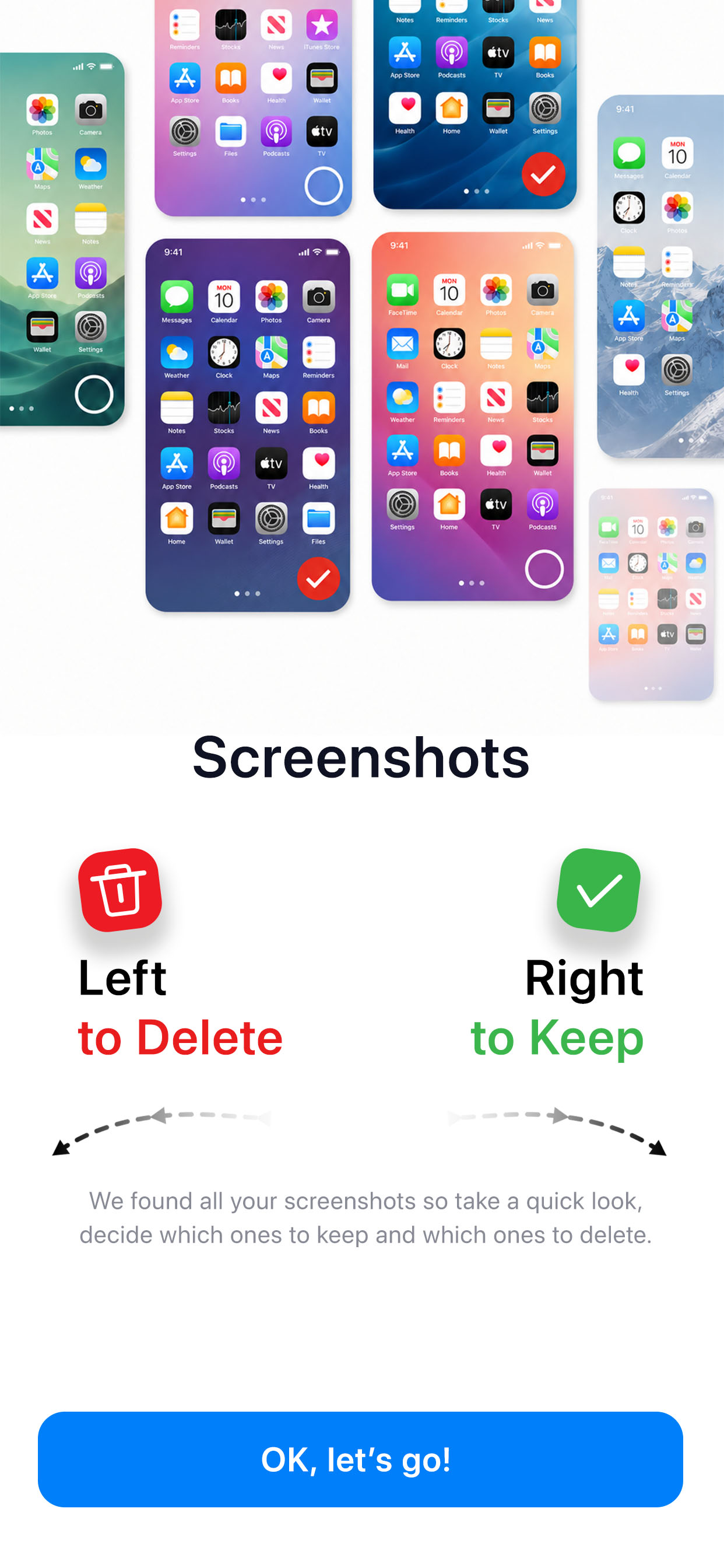
The supplied screenshot explainer illustrates swipe right to keep and left to delete.

Clear the things you saved for later.

Review old screenshots one at a time. Swipe right to keep and left to select for deletion. Check receipts, tickets and anything important before you remove them.

Review your choices before confirming. Back up anything you cannot replace.

Ask FreeUp Space support
Blurry photosA blurry memory may still matter.
The supplied blurry-photo explainer shows a grid of out-of-focus pictures.

A blurry memory may still matter.

FreeUp Space brings blurred photos together. Like it? Swipe right to keep it. If not, swipe left to select it for deletion. You can keep any photo, even if it is not sharp.

Review your choices before confirming. Back up anything you cannot replace.

Ask FreeUp Space support
Burst photosKeep the frames worth keeping.
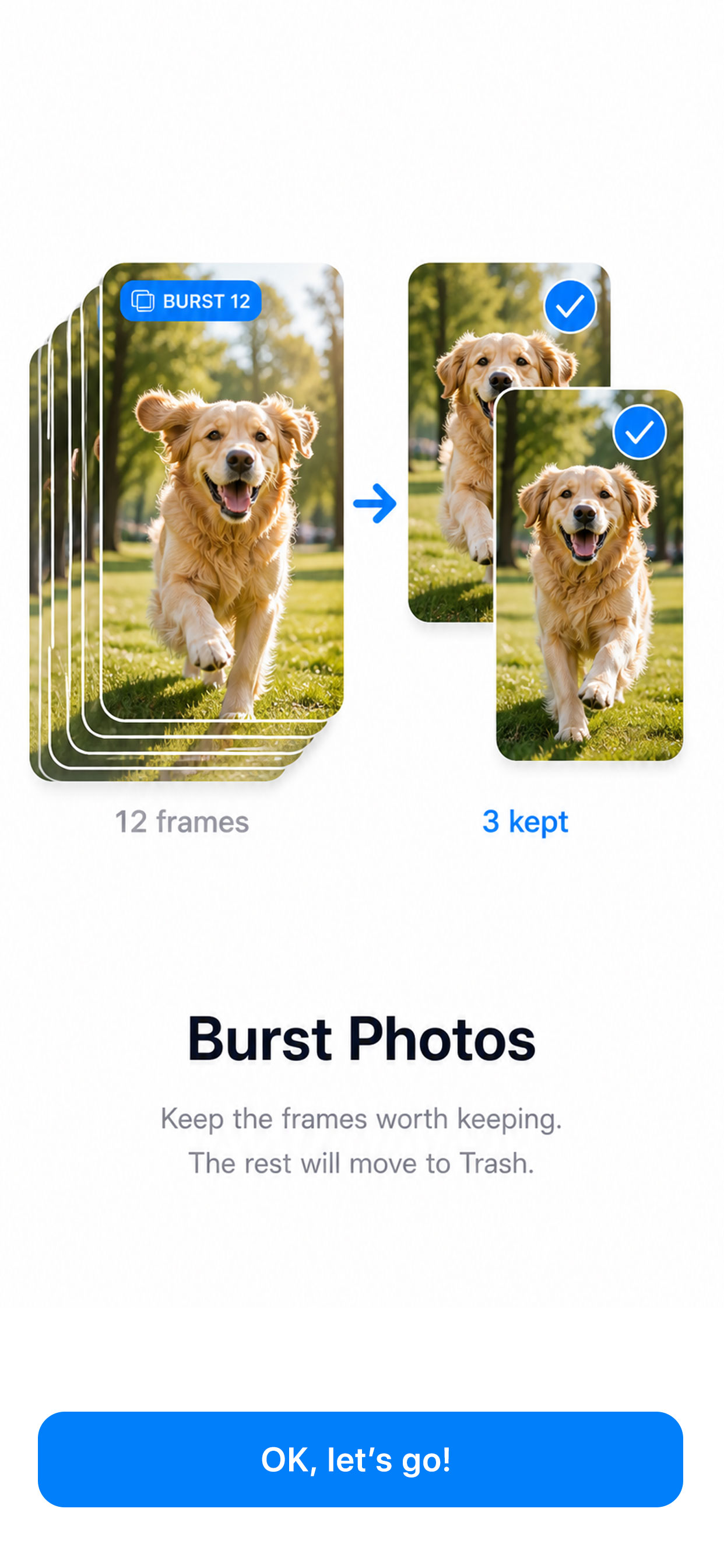
The supplied burst-photo explainer shows a sequence of a running dog with selected frames kept.

Keep the frames worth keeping.

A burst captures several frames close together. Choose the frames you want to keep. The rest move to Trash for the next step of your review.

Review your choices before confirming. Back up anything you cannot replace.

Ask FreeUp Space support
Live to StillKeep the frame you love.
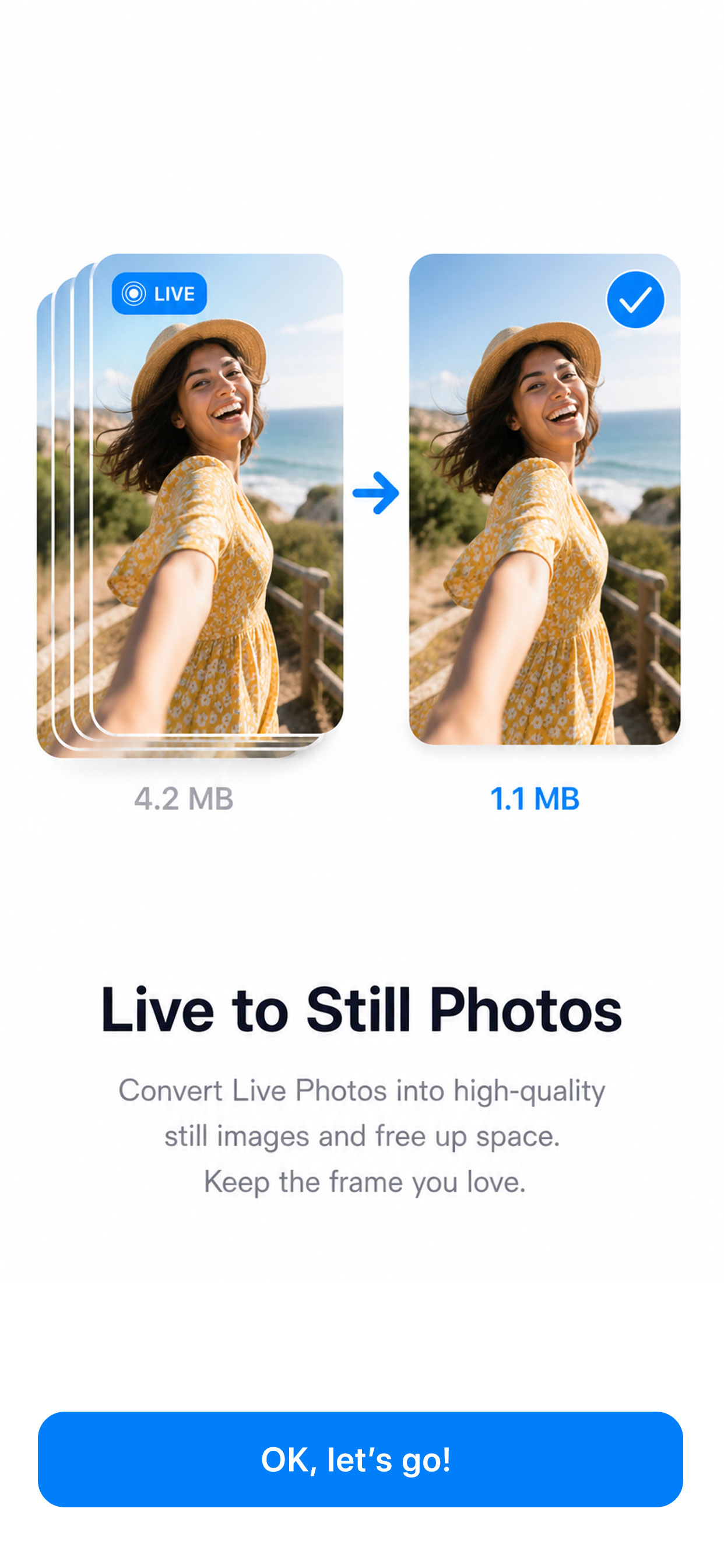
The supplied Live to Still explainer shows a Live Photo converted into a smaller still image.

Keep the frame you love.

Convert a Live Photo to a still image to reduce its size. A still image does not keep the movement or sound of the Live Photo, so keep the original if those are part of the memory.

Review your choices before confirming. Back up anything you cannot replace.

Ask FreeUp Space support
VideosReview the biggest memories carefully.
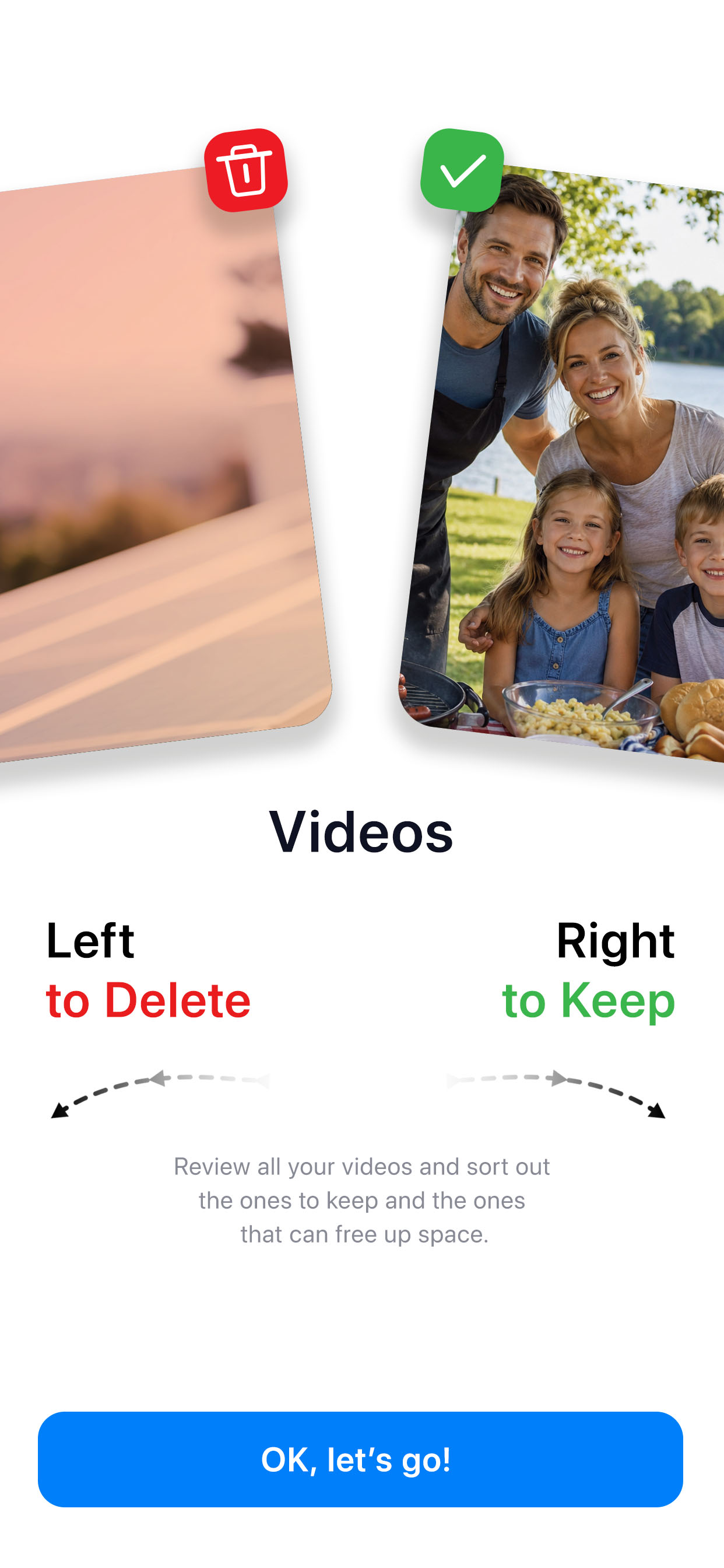
The supplied video explainer shows right to keep and left to delete.

Review the biggest memories carefully.

Review your videos and decide which ones to keep. Swipe right to keep or left to select for deletion. For videos you want to keep in a smaller file, explore Video Compress and compare the preview first.

Review your choices before confirming. Back up anything you cannot replace.

Ask FreeUp Space support
Other photosThe photos that don’t fit a category.
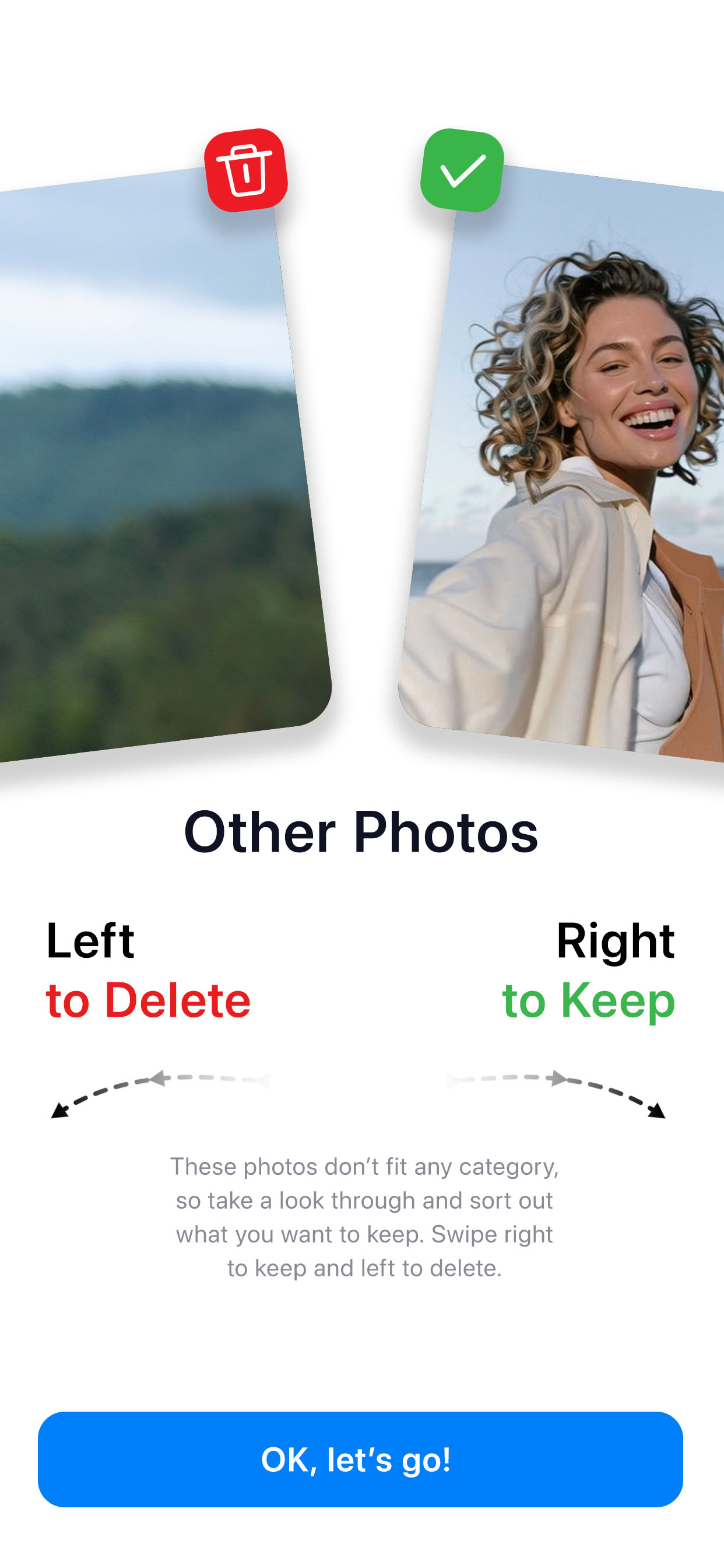
The supplied Other Photos explainer illustrates reviewing uncategorised photos with keep and delete choices.

The photos that don’t fit a category.

Take a look through the remaining photos and sort out what you want to keep. Swipe right to keep and left to select for deletion. If you are unsure, keep it for another day.

Review your choices before confirming. Back up anything you cannot replace.

Ask FreeUp Space support

A closer look at video

See what a smaller video file looks like.

Play the two versions side by side. This demonstration explains compression; it is not a measured result from the app.

Video compression · playable example
Original example1.56 MB
Compressed example196 KB

Illustrative clip, not an app benchmark. Savings and quality depend on the video and settings.

Quick wins

Small steps that often free real space.

01

Check what is using storage first

Go to Settings > General > iPhone Storage. Look for photos, videos, messages, and apps using the most space.

02

Offload apps you rarely use

Offloading can remove the app itself while keeping its documents and data for later.

03

Review large videos

Long videos can use gigabytes quickly. Back up important ones, then remove or optimize the rest.

04

Clean screenshots first

Old receipts, booking confirmations, memes, and temporary notes are usually safer to review than family photos.

05

Check message attachments

Photos and videos inside Messages can quietly take up space even when your photo library looks tidy.

06

Skip anything you are unsure about

Freeing space is useful. Keeping an important memory is more important.

iCloud, plainly

iPhone storage and iCloud storage are not the same thing.

Your iPhone has physical storage built in. iCloud is online storage that can sync photos, backups, files, and messages across devices. Buying more iCloud storage does not make the storage chip inside your phone bigger.

If iCloud Photos is on Deleting a photo on one synced device can remove it from iCloud and your other synced devices too.
Optimize iPhone Storage This can keep smaller versions on your phone while full-size originals stay in iCloud.
Recently Deleted Deleted photos and videos usually stay recoverable for up to 30 days unless you remove them from Recently Deleted.

Safety checklist

What not to rush.

"If it matters, back it up first."

Use this rule for family photos, documents, IDs, medical images, receipts, and anything sentimental.
Do a small clean first Start with screenshots or obvious duplicates before reviewing emotional photos.
Keep the best version For similar photos, choose the clearest face, best smile, or sharpest image.
Check Recently Deleted Empty it only after you are confident you no longer need those items.
Help someone slowly If you are helping a parent, review together and stop whenever they feel unsure.

Before a trip or family event

Make room before the moment arrives.

A short cleanup before travel can save stress when you want to take photos or videos and your phone says storage is full.

10-minute checklist
  1. Back up important videos.
  2. Review large videos and screenshots.
  3. Offload apps you will not need.
  4. Empty Recently Deleted if you are sure.
  5. Run FreeUp Space and review the suggestions.

Common questions

Useful answers for unsure cleaners.

Will buying iCloud storage free space on my iPhone?

Not by itself. iCloud can help store and sync things online, but you still need to manage what is kept locally on the phone.

Why did deleting photos not free space straight away?

They may still be in Recently Deleted. Remove them from there only when you are sure you no longer need them.

Is offloading an app the same as deleting it?

No. Offloading removes the app but can keep its documents and data. Deleting an app removes more.

What should I clean first?

Start with old screenshots, blurry photos, obvious duplicates, and large videos you have already backed up.